How to Convert Pine Script to a CodeLab Indicator
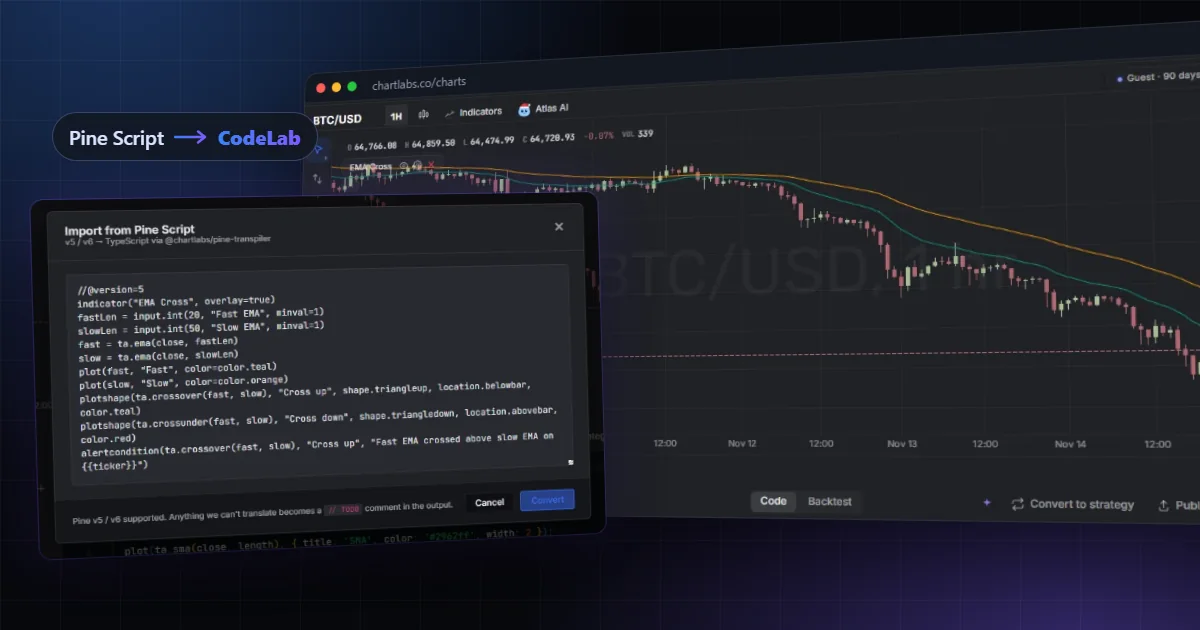
You have a Pine Script indicator or strategy that you rely on, and you want it on a ChartLabs chart. You do not have to start from a blank page. CodeLab, the code editor built into the ChartLabs chart, has a Pine importer that turns your script into editable TypeScript. Most indicator scripts convert; some need hand fixes, and the importer lists what it could not convert.
This guide walks through the import step by step with a small example script we wrote for it, shows what the importer handles, what it flags for review, and how to check the result before you trust it or share it.
How to convert a Pine Script to CodeLab in 6 steps:
- Sign in to a free ChartLabs account and open a chart.
- Open CodeLab from the chart and pick New indicator in the file menu.
- Choose Import from Pine Script, paste your source and press Convert.
- Read the warnings and the items that need manual review, then press Open in editor.
- Press Add to chart and compare the plots with the original script.
- Fix any TODO lines, save, and publish if you want to share it.
Before you start
You need four things.
- A free ChartLabs account. CodeLab is available on the Free plan, so the import costs nothing. Charts open without an account, but sign in so CodeLab can save your script to your account [1].
- The full Pine source. Copy the whole script, from the
//@versionline to the last line. The importer reads the source code, so a script you can only add to a chart, with its code hidden, cannot be converted. - A note of the original settings. Write down the symbol, timeframe and input values you use, so you can compare like with like later.
- The right to use the code. Convert only code you wrote or have the right to use. Open-source scripts carry their author's licence (often MPL-2.0), and protected or invite-only scripts are not yours to copy.
The importer is built for Pine Script v5 and v6, and the dialog says so. It also has mappings for older scripts, such as v4 input() and older built-in names, but review an older script more closely.
How do you import a Pine Script into CodeLab?
- Open a chart at chartlabs.co/charts.
- Open CodeLab. It docks under the chart. You can also open the indicator library (The Lab) from the chart's Indicators button and press Import Pine, which opens CodeLab with the import dialog ready.
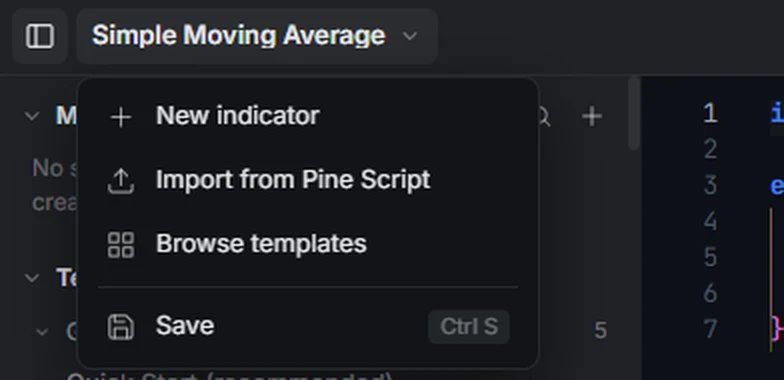
- Click the script name at the top left of CodeLab to open the file menu, and pick New indicator. Do this first: the import replaces the code of the script that is open, it does not make a new one.
- Open the file menu again and pick Import from Pine Script.
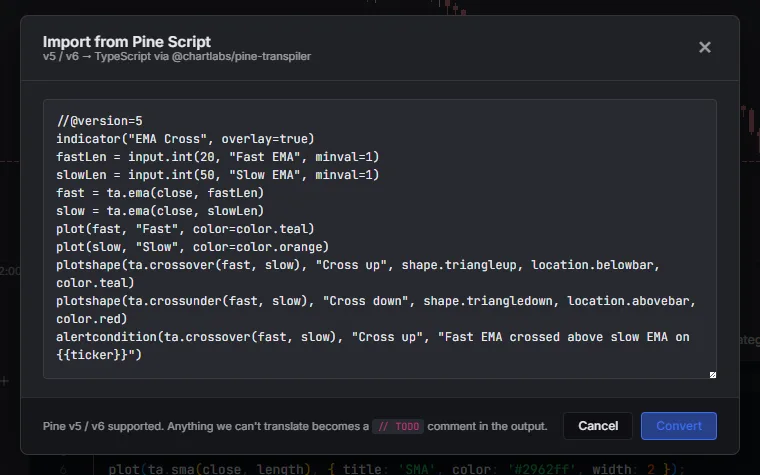
- Paste your Pine source into the box and press Convert.
If your script uses import publisher/library/version lines, the importer fetches those public libraries for you, and the libraries they import in turn, up to five levels deep. The button reads "Fetching libraries…" while it works. A library that is private or no longer published cannot be fetched. The importer says so, and the calls that use it are marked for manual review.
When the conversion has no warnings, the code opens in the editor at once. When it has warnings, the dialog stays open so you can read them, and you press Open in editor to continue. The script takes its name from the title in your indicator() or strategy() line.
A worked example: an EMA cross
Here is a short Pine Script v5 indicator we wrote for this guide. It draws a fast and a slow exponential moving average (EMA), marks the bars where they cross, and adds an alert for the upward cross.
//@version=5
indicator("EMA Cross", overlay=true)
fastLen = input.int(20, "Fast EMA", minval=1)
slowLen = input.int(50, "Slow EMA", minval=1)
fast = ta.ema(close, fastLen)
slow = ta.ema(close, slowLen)
plot(fast, "Fast", color=color.teal)
plot(slow, "Slow", color=color.orange)
plotshape(ta.crossover(fast, slow), "Cross up", shape.triangleup, location.belowbar, color.teal)
plotshape(ta.crossunder(fast, slow), "Cross down", shape.triangledown, location.abovebar, color.red)
alertcondition(ta.crossover(fast, slow), "Cross up", "Fast EMA crossed above slow EMA on {{ticker}}")
Paste it into the import dialog and press Convert. When we ran it through the importer, it converted with no warnings and no TODO notes, so the code opened straight in the editor. The result is a CodeLab script with two number inputs (Fast EMA and Slow EMA), two lines, two sets of cross markers and the alert.
Press Add to chart to run it on the chart you have open. The button changes to "Live on" and the symbol, and the console confirms the import, the compile and the indicator on the chart.
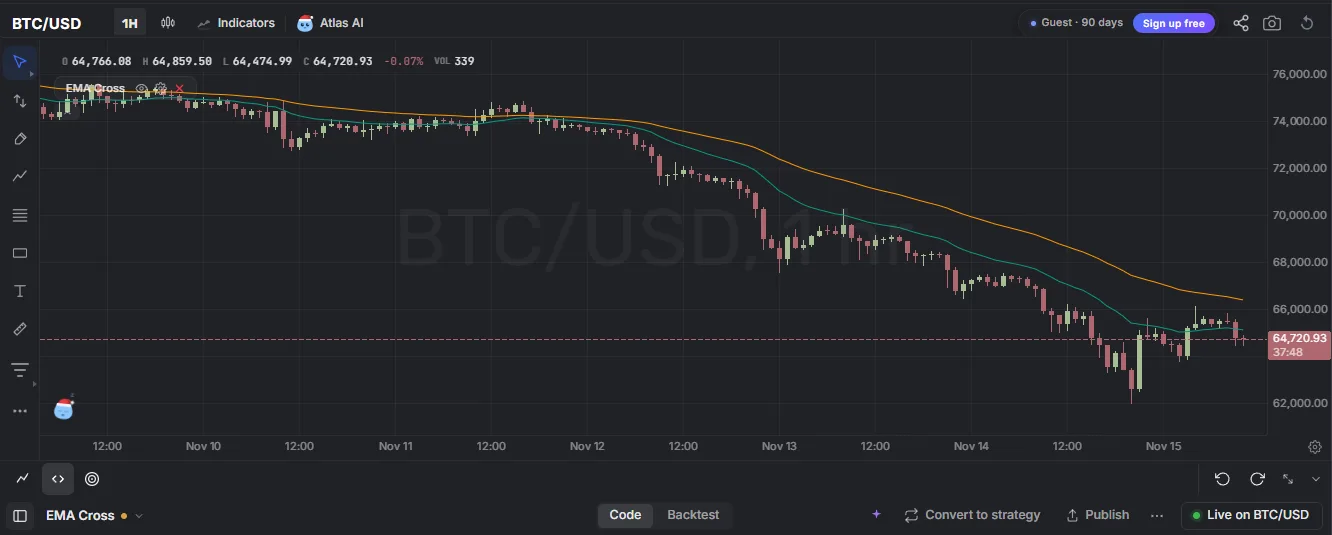
Then check it, as described below, before you rely on it. A clean conversion means nothing was skipped, not that every value matches the original.
What do the warnings and TODO notes mean?
The importer tells you where it is unsure in two ways.
- Warnings are known limits, places where the converted script may not match the original, for example a call that ChartLabs ignores. The warnings are listed in the dialog and also saved as notes at the top of the converted code, so they are not lost.
- TODO notes are lines it could not translate. Each one appears in the dialog as "line:column · reason" and in the code as a
// TODO(transpiler)comment at that spot. The rest of the script still converts, so one unknown line does not stop the import.
An empty list is not proof of a perfect match. Some differences, such as session VWAP, do not raise a warning, so check the chart either way.
If part of the source cannot be parsed, that statement becomes a TODO and the rest still converts. If the whole script cannot be read, the dialog shows the error and stays open. Fix the source and convert again.
Which Pine features does the importer handle?
The importer has translations for most of the language that everyday indicators use. Having a translation is not a promise that a given script will match the original, so treat the table as a guide to what to check, not a guarantee.
| Area | The importer handles | Check this |
|---|---|---|
| Declarations | indicator() and strategy() with their titles and settings | Keep the declaration as the first statement |
| Inputs | input.* and v4 input(); many keep their group, inline row and tooltip | Compare every input's layout and your saved values |
| Plots | plot, plotshape, plotchar, plotarrow, plotcandle, plotbar, hline, fill, bgcolor, barcolor | Colours and line styles |
| Drawings | line, label, box, table, polyline, linefill | Table borders, some text and layout setters and some polyline options are skipped or approximated |
| Data | request.security (including Heikin Ashi) and request.security_lower_tf | Another symbol falls back to the chart's own bars if no data is available for it; lower-timeframe requests use one chart bar when sub-bars are missing |
| Language | var, varip, switch, while, user types, enums, methods, arrays, matrices and maps | Rare built-ins may come back as TODOs |
| Alerts | alert() and alertcondition() with placeholders such as {{ticker}} and {{close}} | Recreate the alert on ChartLabs after the import |
| Libraries | Public import libraries are fetched and built in | Private libraries cannot be fetched |
Some things cannot work the same way. Most of these raise a warning, but not all of them:
- Fundamental and economic data.
request.financial,request.earnings,request.dividends,request.splitsandrequest.economicreturnna, because ChartLabs does not provide that data. - Strategy risk limits.
strategy.risk.max_drawdown,max_position_size,max_intraday_lossand similar limits are ignored.strategy.risk.allow_entry_inis applied. - Pivot point levels.
ta.pivot_point_levelsreturns an empty list. - Session VWAP.
ta.vwapis not anchored to the trading session, so it can differ from the original.
How do you check the converted indicator?
Do not rely on a converted script until you have compared it with the original and resolved its TODO notes. Check it the same way every time.
- Press Add to chart in the CodeLab toolbar. The button changes to "Live on" and your symbol once the indicator runs, and the chart updates as you edit.
- Open the indicator's settings and enter the same input values you noted before.
- Load the same symbol and timeframe you used with the original and compare several recent bars: plot values, colours, shapes and drawings.
- Compare the first bars of history separately. While an indicator warms up, some ChartLabs helpers return a value where Pine returns
na. - Work through each
// TODO(transpiler)comment. You can ask Atlas, the AI in the CodeLab toolbar, about any line you are unsure of. - Save with Ctrl S. Your script is saved to your account, and the original Pine source is kept privately with it so you can compare later.
Note that a Free account can show up to 5 indicators on one chart, so remove one if the chart is full.
Can you convert a Pine strategy?
You can import a script that starts with strategy(). The importer translates its orders, and its strategy() settings for capital, commission and slippage (the gap between the price you expect and the price you get) are kept. Open the Backtest tab in CodeLab to see the trades. A backtest runs a set of rules over past bars to show what they would have done.
Check a converted strategy even more carefully than an indicator. Order handling has more edge cases: fills are not rounded to lot size, margin calls are not simulated and OCA order groups are ignored. Backtest results are hypothetical, and past results do not predict future results.
How do you publish a converted script?
When you are happy with the result, you can share it.
- Run the script with Add to chart first: CodeLab asks you to compile a script before it can be published.
- Press Publish in the CodeLab toolbar and work through Details, Pricing and Review.
- Choose who can see it: Open Source, Protected, Private or Invite Only.
- Free listings go to the community feed straight away. Paid listings need an approved seller account and the Seller Agreement, cannot be Open Source, and are reviewed before they go live [2].
The publish dialog repeats the conversion warnings from the top of your code. Explain any limits that matter to buyers in the listing description. If you sell indicators already and want help moving a whole catalogue, the ChartLabs vendor programme offers a hand-checked conversion [2].
When this doesn't work
The importer is a strong start, not a guarantee. Plan on hand fixes in these cases:
- The script uses data ChartLabs does not have, such as company financials, earnings or economic releases. Those calls return
na, so anything built on them stays empty. - The script imports a private library. The importer cannot fetch it, and every call into it needs rewriting.
- The output has TODO notes. Each one is a line that did nothing after the import. Until you fix them, the script is incomplete, even if it draws something.
- The numbers drift from the original. Compare on the same symbol, timeframe and settings. Session-anchored VWAP, early warm-up bars and other-symbol requests are the usual causes.
- You do not have the right to the code. Then do not convert it. Write your own version instead, or ask the author.
If you are stuck, ask Atlas in the CodeLab toolbar to explain a line, or read the CodeLab SDK docs.
Common questions
Is the Pine Script importer free?
Yes. CodeLab, including the Pine importer, is part of the Free plan. You need a free account to open CodeLab and save your script.
Which Pine Script versions are supported?
Version 5 and version 6 are supported. The importer also has mappings for older versions, but check those scripts more closely, because they use older function names that the importer has to translate.
Will my converted indicator match the original exactly?
An exact match is not guaranteed. The importer lists the warnings and TODO notes it detects, but some differences raise no warning, and some data, such as company fundamentals, is not available on ChartLabs. Compare the plots on the same symbol, timeframe and settings before you rely on the result.
Can I edit the code after the import?
Yes. The result is ordinary CodeLab TypeScript in the editor, so you can change it, add features or ask Atlas about a line. Your edits save to your account.
Can I convert a script that only shows on a chart with its code hidden?
No. The importer needs the source code, and a protected or invite-only script is not yours to copy. If you are the author, copy the source from your own editor and convert that.
Is this an official migration tool?
No. The Pine importer is a ChartLabs feature. TradingView and Pine Script are trademarks of TradingView, Inc. ChartLabs is not affiliated with, endorsed by or sponsored by TradingView.
Sources
- ChartLabs, CodeLab: build custom indicators, 2026. https://chartlabs.co/codelabs
- ChartLabs, Sell your indicators on ChartLabs, 2026. https://chartlabs.co/vendors
Bring your Pine Script over
Open a chart, open CodeLab and paste your first script.
Open a free chartEducational content, not financial advice. This guide is general education; trading leveraged products can lose more than you expect, so consider your own circumstances.
TradingView and Pine Script are trademarks of TradingView, Inc. ChartLabs is not affiliated with, endorsed by or sponsored by TradingView.